• Make Over Arena

Local Selling Sites on Facebook - Local selling Groups Near Me

Know more about what Facebook store means. Selling products online is trending in the world we live in today as we are in the computer age....

Showing posts with label Make Facebook private. Show all posts

How to make your Facebook private

 Facebook, Make Facebook private     No comments   

Facebook is a wonderful tool you can use in keeping in touch with old friends, family and anyone else you care to talk to. But that digital freedom comes at a cost: your privacy. Fortunately there are ways to make sure that only the people you want to see your Facebook profile can – unless of course somebody knows your password.
The steps to making your Facebook private is actually relatively easy once you familiarize yourself with the increasingly bloated user-interface. So where do you begin? Read on.

1. Privacy Shortcuts
There are two easy ways to get to the necessary privacy settings of your Facebook profile. In the top right, you will see a button to the right of your name – it has a padlock sign on it and three horizontal lines. Press it and then select 'See More Settings' at the bottom.
How to make your Facebook private
On the other hand, you can click the little cog settings button located in the very top right next to the aforementioned Privacy Short button and then select "Settings" from the drop-down menu. The end result is exactly the same in either case. Now you can set your privacy to your standard.

2. Who can see my stuff?
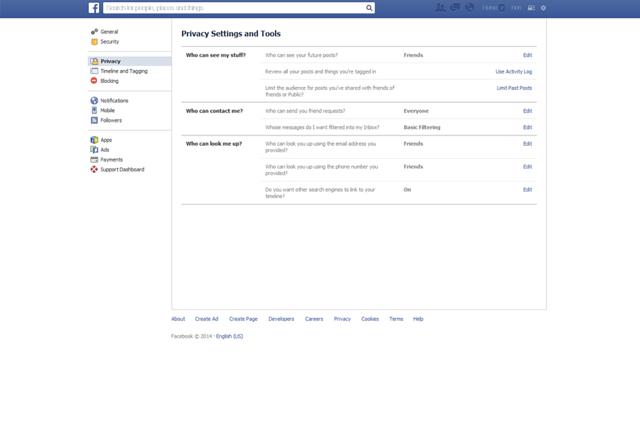
Under the Privacy Settings and Tools heading you will see three questions in bold letters: "Who can see my stuff?", "Who can contact me?" and "Who can look me up?". Let's start with the first heading on the list.
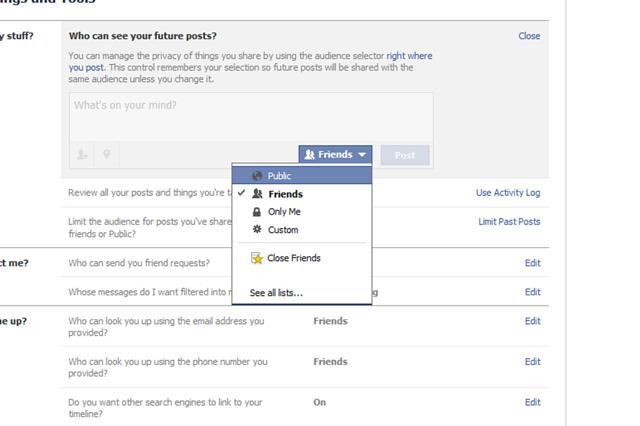
i) "Who can see your future posts?": click the edit button on the far right. Select who you want to see your future Facebook posts from the drop-down menu. Naturally, public will be the opposite of private so set it to "friends" if you only want Facebook friends to see them.
How to make your Facebook private
Also you can select "only me" if you want only yourself to see what you post, or click "Custom". Custom allows you to select specific options including "Don't share with", meaning you can choose a particular Facebook friend or friends you no longer wish to share posts with. You can also block lists you are a part of, such as a school network.
If there is a post you want to limit the visibility of, the "Review all your posts and things you're tagged in" setting located below allows you to do just that. Hit the "activity log" button and use the pen edit button to delete specific entries you no longer wish to share.

ii) Who can contact me?
If you want to stop getting messages in your inbox from people who aren't your Facebook friends, you can use the message-filtering option under "Who can contact me?". Switch it from basic filtering to strict filtering to only see messages from friends in your inbox. Doing so will keep random messages from strangers at bay.

iii) Who can look me up?
Maybe you want to limit who can look up your Facebook profile. The "Who can look me up?" options allows you to set your privacy to your preference in this regard. With friends enabled, only your friends can look you up using your email address.
The same options can be said for your phone number i.e., if you entered one into Facebook. Again, you can select the friends option for the highest level of privacy.

Finally, you can choose whether search engines such as Bing and Google can be linked to your Timeline. A simple tick box option is all it will take to really shut your Facebook profile off from the world wide web. As Facebook states, this option can take a while to come into effect so don't panic if it seems like you are still coming up on search engines.

Do you want ultimate privacy?
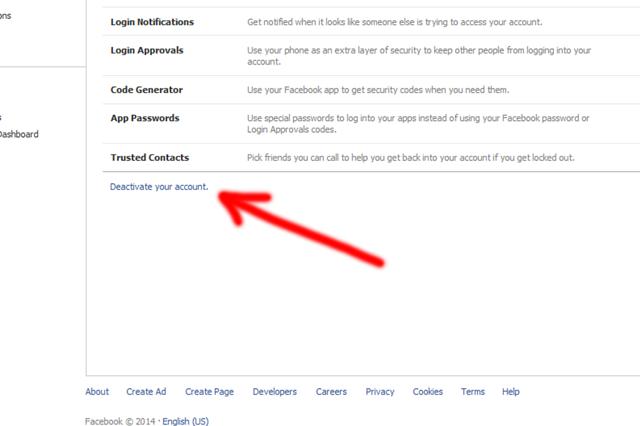
To really ensure your privacy, there is always the option of leaving Facebook entirely. Of course, this is a drastic course of action but something like online bullying could force your hand (in which case, you should seek support). Or maybe you are just tired of sharing everything so publicly.
How to make your Facebook private
Read More
  • Share This:  
  •  Facebook
  •  Twitter
  •  Google+
  •  Stumble
  •  Digg

How to make Your Facebook Private

 Facebook, Make Facebook private     No comments   

Facebook is a wonderful tool you can use in keeping in touch with old friends, family and anyone else you care to talk to. But that digital freedom comes at a cost: your privacy. Fortunately there are ways to make sure that only the people you want to see your Facebook profile can – unless of course somebody knows your password.

The steps to making your Facebook private is actually relatively easy once you familiarize yourself with the increasingly bloated user-interface. So where do you begin? Read on.

1. Privacy Shortcuts
There are two easy ways to get to the necessary privacy settings of your Facebook profile. In the top right, you will see a button to the right of your name – it has a padlock sign on it and three horizontal lines. Press it and then select 'See More Settings' at the bottom.
How to make your Facebook private
On the other hand, you can click the little cog settings button located in the very top right next to the aforementioned Privacy Short button and then select "Settings" from the drop-down menu. The end result is exactly the same in either case. Now you can set your privacy to your standard.

2. Who can see my stuff?
Under the Privacy Settings and Tools heading you will see three questions in bold letters: "Who can see my stuff?", "Who can contact me?" and "Who can look me up?". Let's start with the first heading on the list.
i) "Who can see your future posts?": click the edit button on the far right. Select who you want to see your future Facebook posts from the drop-down menu. Naturally, public will be the opposite of private so set it to "friends" if you only want Facebook friends to see them.
Search terms:how do you make everything on your facebook private?how to make your facebook profile picture privatehow to make your facebook photos privatehow to make facebook private on app
How to make your Facebook private
Also you can select "only me" if you want only yourself to see what you post, or click "Custom". Custom allows you to select specific options including "Don't share with", meaning you can choose a particular Facebook friend or friends you no longer wish to share posts with. You can also block lists you are a part of, such as a school network.
If there is a post you want to limit the visibility of, the "Review all your posts and things you're tagged in" setting located below allows you to do just that. Hit the "activity log" button and use the pen edit button to delete specific entries you no longer wish to share.

ii) Who can contact me?
If you want to stop getting messages in your inbox from people who aren't your Facebook friends, you can use the message-filtering option under "Who can contact me?". Switch it from basic filtering to strict filtering to only see messages from friends in your inbox. Doing so will keep random messages from strangers at bay.

iii) Who can look me up?
Maybe you want to limit who can look up your Facebook profile. The "Who can look me up?" options allows you to set your privacy to your preference in this regard. With friends enabled, only your friends can look you up using your email address.
The same options can be said for your phone number i.e., if you entered one into Facebook. Again, you can select the friends option for the highest level of privacy.

Finally, you can choose whether search engines such as Bing and Google can be linked to your Timeline. A simple tick box option is all it will take to really shut your Facebook profile off from the world wide web. As Facebook states, this option can take a while to come into effect so don't panic if it seems like you are still coming up on search engines.

Do you want ultimate privacy?
To really ensure your privacy, there is always the option of leaving Facebook entirely. Of course, this is a drastic course of action but something like online bullying could force your hand (in which case, you should seek support). Or maybe you are just tired of sharing everything so publicly.Keywords:
how to make facebook completely private to non friends
how to make facebook private 2018
how can i make my facebook account unsearchable?
how do i set my facebook account to private

How to make your Facebook private
Read More
  • Share This:  
  •  Facebook
  •  Twitter
  •  Google+
  •  Stumble
  •  Digg
Older Posts Home

Blog Archive

  • ▼  2019 (494)
    • ▼  July (5)
      • Local Selling Sites on Facebook - Local selling Gr...
      • Facebook Store – Facebook Buy an Sell – Facebook M...
      • Marketplace App For Facebook – Facebook Selling Ap...
      • Facebook Marketplace Buy And Sell | Join Marketpla...
      • Facebook Marketplace How to Sell – How to Sell Stu...
    • ►  February (359)
    • ►  January (130)
  • ►  2018 (2136)
    • ►  November (83)
    • ►  October (151)
    • ►  June (300)
    • ►  May (1162)
    • ►  April (279)
    • ►  March (161)
  • ►  2016 (48)
    • ►  December (1)
    • ►  July (41)
    • ►  June (6)

Contact Us

Name

Email *

Message *

Search

Populars

  • Marketplace App For Facebook – Facebook Selling App Download | How To Download Marketplace App
    Marketplace App For Facebook – Facebook Selling App Download | How To Download Marketplace App The Marketplace removes the drudgery a...
  • How to Change Name on Facebook Profile
    welcome to our How to Change Name on Facebook Profile post for 2018. How to Change Name on Facebook Profile – Facebook has actually ...
  • How to Deactivate Facebook Messenger | Deactivate My FB App - Messenger
    How to Deactivate Facebook Messenger | Deactivate My FB App - Messenger : You might probably be wondering where and  how to deactivate or ca...
  • How to delete faceɓook account permanently
    Have you been thinking of how to delete your Faceɓook account permanently? well, this latest Facebook article will be helpful enough to sho...
  • View Your Blocked Facebook List and Unblock Friends
    Learn How To View Blocked List  on Facebook and Unblock Friends: Your Facebook account is entirely yours and you can choose whatever settin...
  • View Your Blocked Facebook List and Unblock Friends
    Learn How To View Blocked List  on Facebook and Unblock Friends: Your Facebook account is entirely yours and you can choose whatever settin...
  • How to Open another Facebook account using Chrome
    How to Open another Facebook account using Chrome: We shall see how to use multiple account in Facebook, twitter and other. This article is...
  • How Do I Log out of My Facebook Account?
    How Do I Log out of My Facebook Account? - To login successfully into your Facebook account is easy, what about logging out? It's also...
  • How to Deactivate or Delete Facebook Account
    Should you delete or deactivate Facebook account? Learn what the difference between deleting and deactivating Facebook account in this new a...
  • Delete My Facebook Account Permanently Right Now
    Delete My Facebook Account Permanently Right Now: Facebook is the most popular and largest social media network sites that are being used...

Copyright © MoneyOmetrics